

Have a company activation code? and
entering the code from your activation email. Creating a general ScrambleID
profile by itself does not connect you to LoopIQ.
Before you begin
Have the following ready:- The LoopIQ or ScrambleID activation email sent to your work email address
- The company activation code from that email
- A mobile phone that can receive an SMS message
- The ScrambleID app for iOS or Android
Use the same work email address that received your LoopIQ invitation. LoopIQ
uses that email to resolve your organization membership and permissions.
Register your account
1
Start a new ScrambleID account
Open the ScrambleID mobile app and select 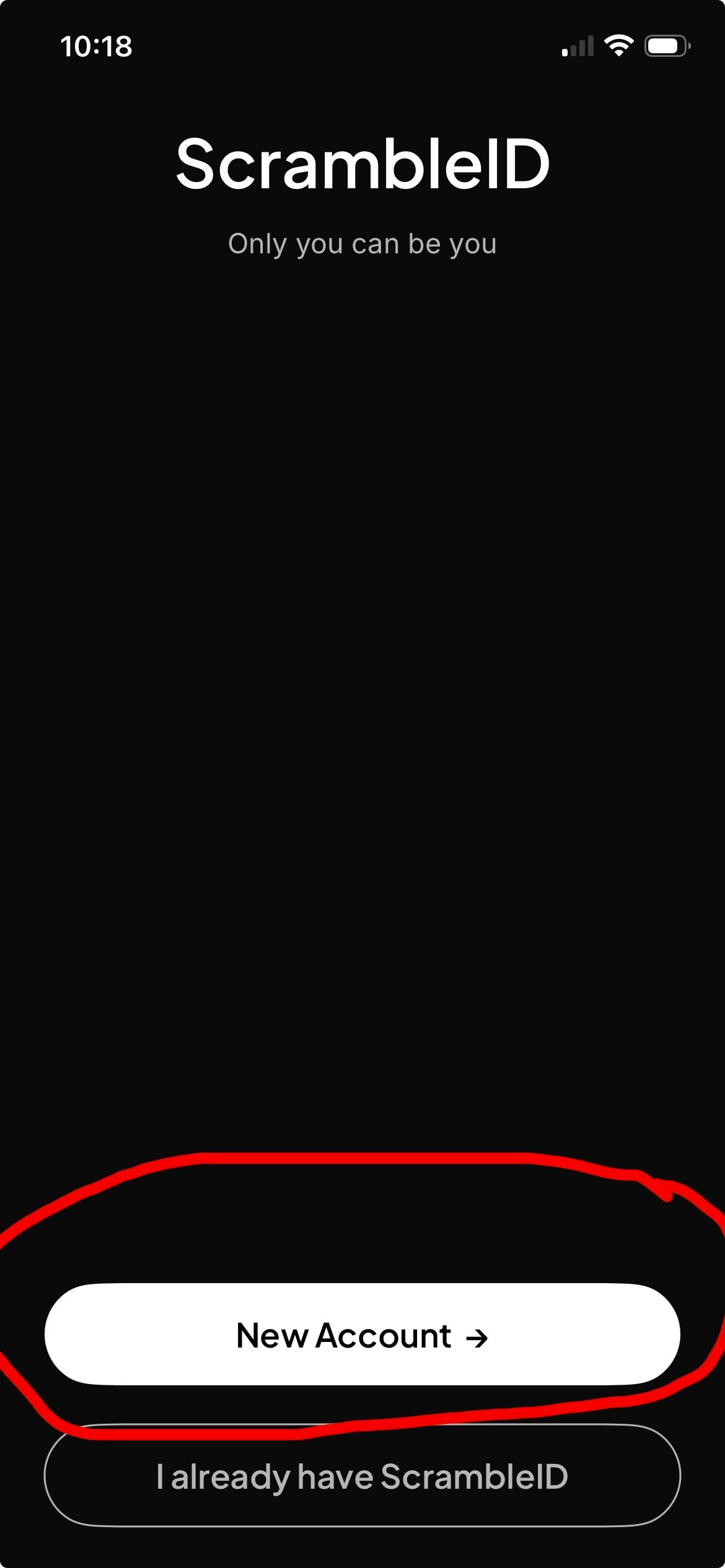
New Account.If you already use ScrambleID on this device, select
I already have ScrambleID instead and continue to the company activation
step for the existing account.2
Choose phone registration
On the 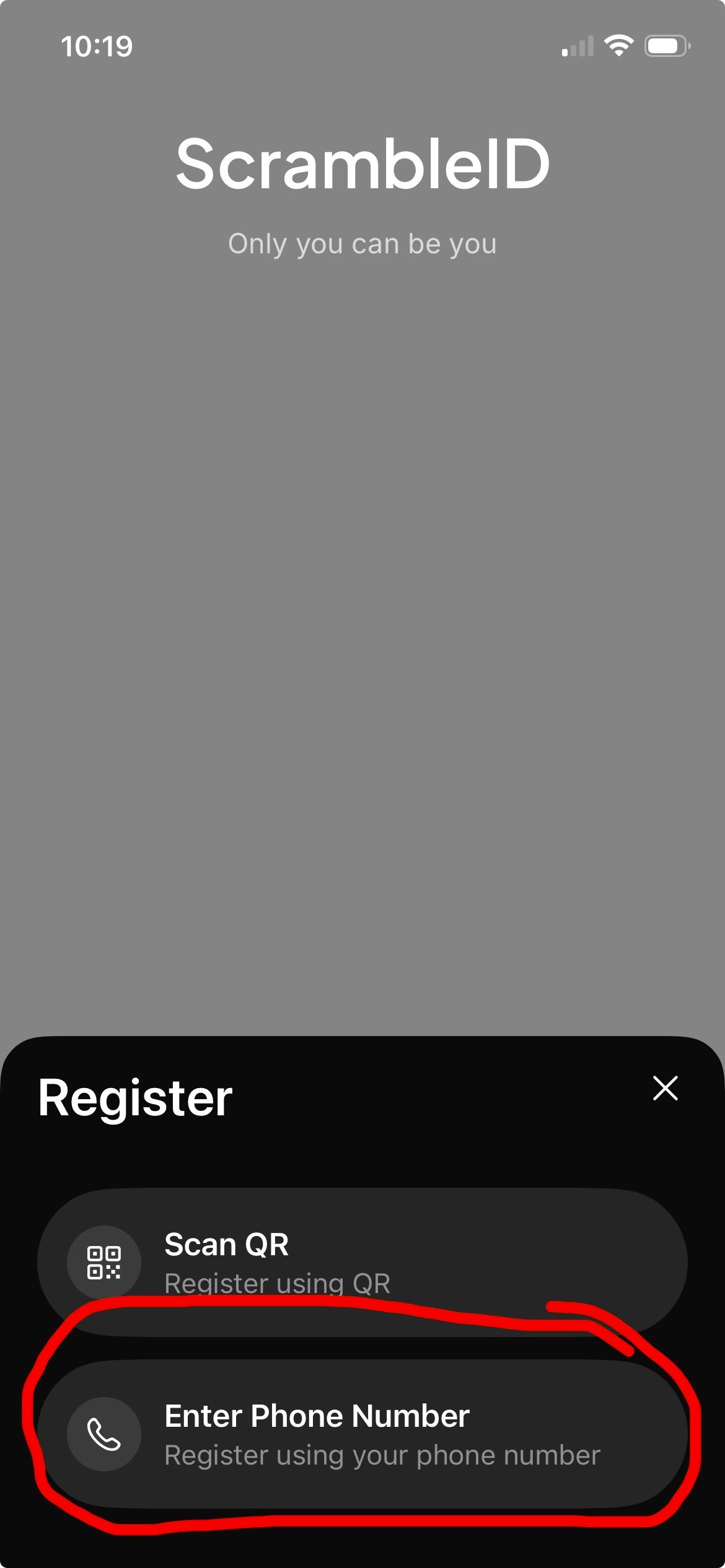
Register panel, select Enter Phone Number.Use Scan QR only when your organization administrator has specifically
given you a registration QR code.3
Enter your mobile number
Confirm the country code, enter the mobile number that can receive your
verification text, and select 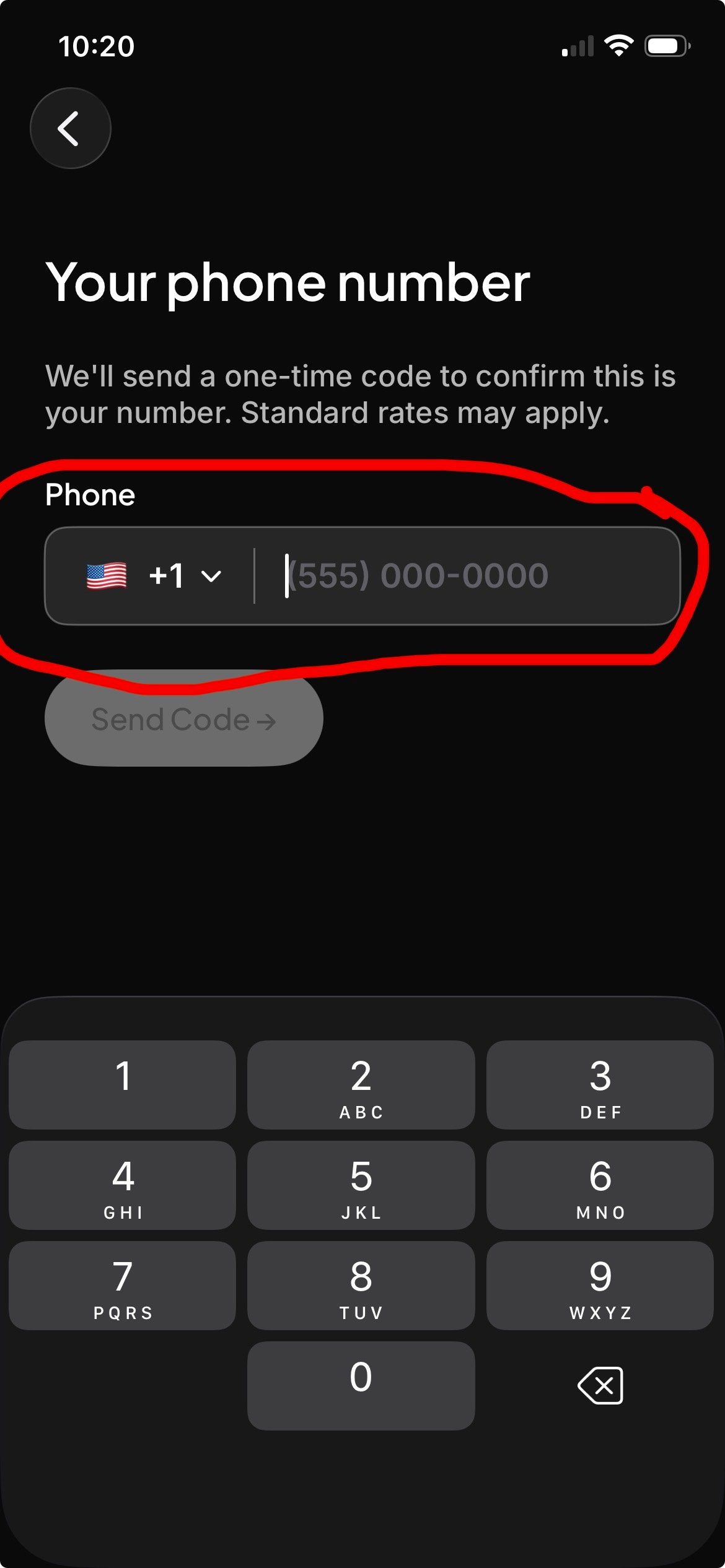
Send Code.4
Verify the phone number
Enter the six-digit code sent by SMS and select 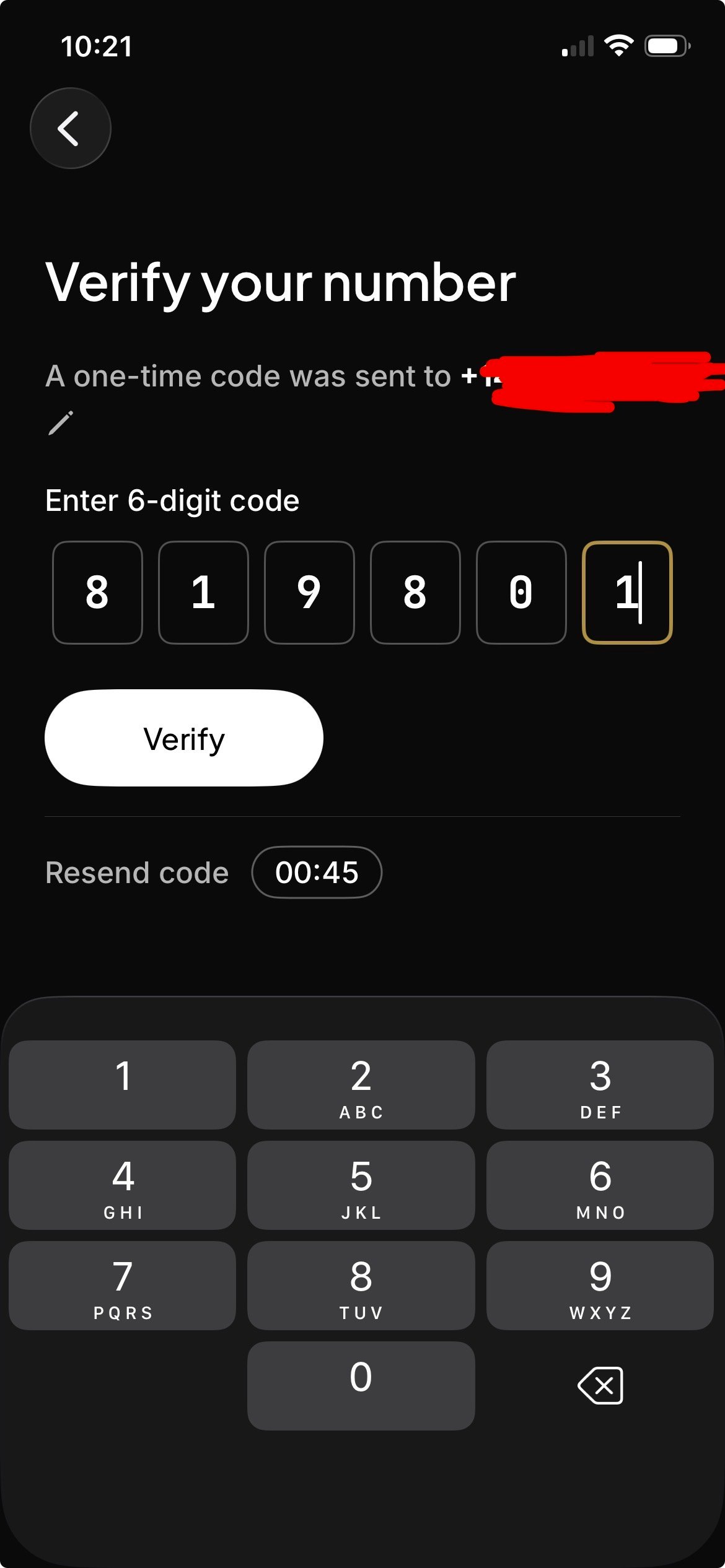
Verify.If the message does not arrive, wait until the countdown ends and use
Resend code. Also confirm that the displayed phone number and country code
are correct.5
Complete your profile
Enter your first name, last name, and the same work email address that
received the LoopIQ invitation. Review the terms and privacy policy, then
select 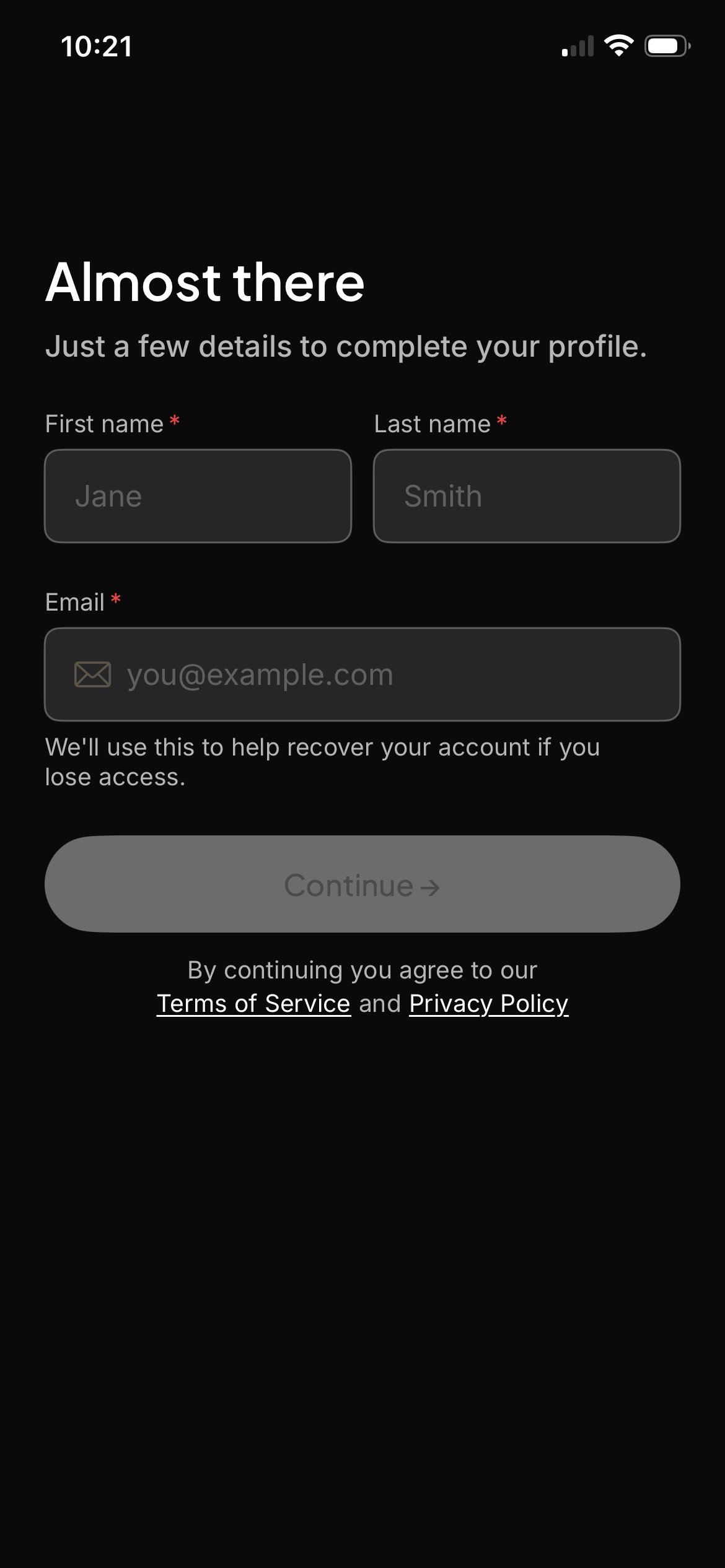
Continue.Do not substitute a personal email address. A different email can prevent
LoopIQ from finding your existing organization membership.6
Connect ScrambleID to LoopIQ
When 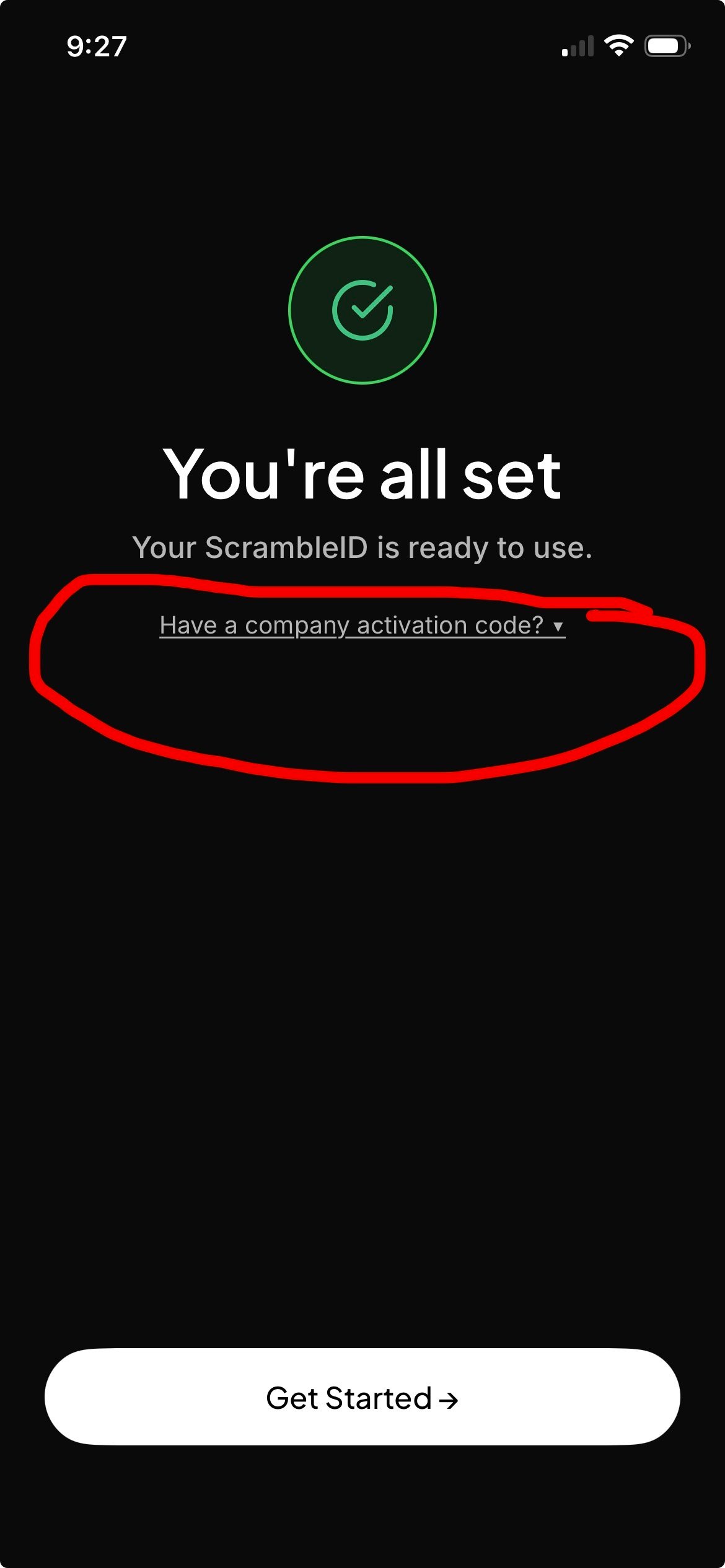
You're all set appears, select
Have a company activation code?. Do not stop at this screen or select
Get Started before attaching the LoopIQ activation.7
Enter the company activation
On the next screen, enter:
- The work email address from your LoopIQ invitation
- The company activation code from the activation email
8
Sign in to LoopIQ
Return to LoopIQ and select
Log in. LoopIQ opens
ScrambleID for authentication and then loads the organization and access
assigned to your verified work email.What successful registration means
After registration:- ScrambleID confirms your identity and registered device.
- LoopIQ resolves your organization, teams, roles, and permissions from the LoopIQ account associated with your work email.
- The same ScrambleID identity can authenticate supported LoopIQ web and mobile applications, subject to your LoopIQ permissions.
Troubleshooting
The SMS code did not arrive
Confirm the country code and phone number, wait for the resend timer, and then selectResend code. If messages are blocked by your carrier or device, contact
your mobile provider or organization administrator.
The company activation code is rejected
- Make sure you entered the code from the most recent activation email.
- Confirm that the work email matches the invitation exactly.
- Check whether the code has expired.
- Ask your LoopIQ organization administrator to resend the activation if needed.